
QCS / FRESH PROJECT / 3 NOVEMBER 2026
Start your isolated GNS3 FortiGate workspace
A guided path from an empty project to an isolated three-node learning workspace.
Guided analysis · conditional practicals · appliance runtime validation pending
Foundations: guided analysis. Animations are authored examples, not captured appliance results. Practical exercises are conditional drafts: run them only after exact-build licensing, isolation, private management, protected backup and baseline acceptance checks pass. No FortiGate/GNS3 appliance runtime has been validated for this course.
Create a fresh three-node workspace using VMware Workstation → GNS3 VM → FortiGate plus a disposable client and server. Follow the checkpoints in order. This guide provides the project/preflight path; it does not claim a completed or validated appliance configuration.
Go to the 12 setup checkpoints · Understand the hard stop · Read the later baseline specification
See the layers and both traffic directions
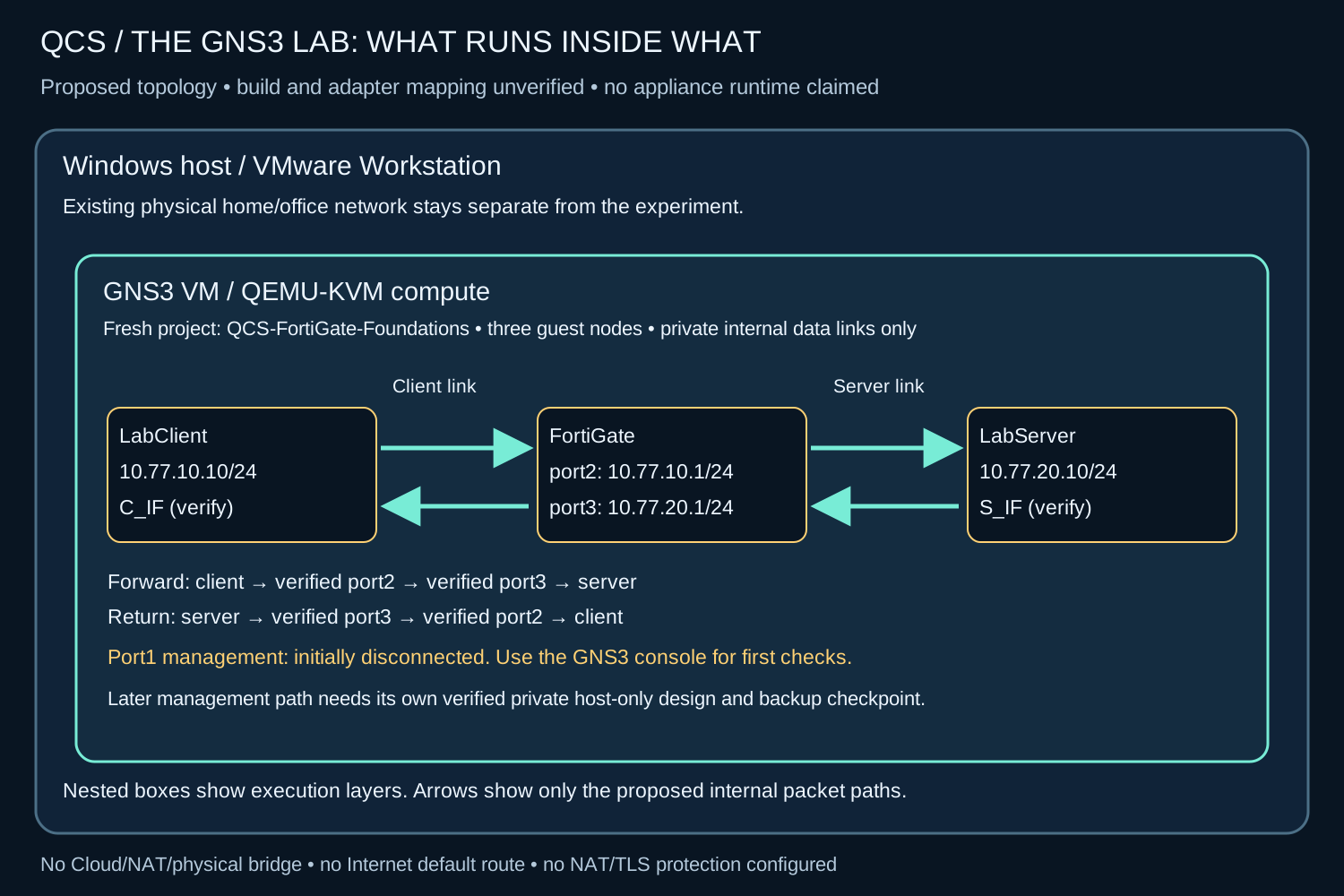
The nested boxes show execution containers, not additional network connections. The packet arrows describe the planned data path; no running appliance is depicted. Open the scalable diagram.
1. Record the installed tools
Where: Windows and GNS3
Open GNS3 Help → About and record the exact GUI version. Record the GNS3 VM/server version from its status display as well. Use the existing VMware-hosted GNS3 VM; FortiGate will run inside it as a QEMU/KVM guest.
Expected checkpoint: GUI and server/VM versions are recorded; the intended existing GNS3 VM is identified.
Stop if: If versions or compute targets do not match, stop for compatibility review. “Latest” is not an exact version.
2. Check capacity and acceleration
Where: Read-only host/VM status
Read available host memory and the current outer-VM allocation. Check that the GNS3 VM reports KVM support available. Budget for FortiGate, two Linux guests and VM overhead using their actual requirements and licence capabilities.
Expected checkpoint: The planned guests fit an approved resource budget; KVM support is available.
Stop if: Do not change RAM/vCPU allocations or host security to force the lab to start. If capacity or acceleration is unsuitable, stop for a separate preflight.
3. Confirm the image and licence boundary
Where: Your private vendor/template inventory
Locate a lawful FortiGate KVM base image and a compatible GNS3 appliance template. A VMware FortiGate OVF is not the intended inner guest format. Confirm that the licence permits this new instance and its intended interfaces/resources.
Expected checkpoint: A lawful, compatible image/template and entitlement path are identified.
Stop if: Do not clone an activated licensed disk, copy keys, consume another evaluation entitlement or move licence assignments. Activation/revalidation connectivity needs separate vendor-supported planning.
4. Create one blank project
Where: GNS3 File menu
Choose File → New blank project and name it QCS-FortiGate-Foundations. Save it in a new dedicated project location. Keep every other project separate.
Expected checkpoint: An empty project canvas is open with the new name.
Stop if: If the canvas already contains devices or references another project, stop and verify the project identity.
5. Prepare the three guest templates
Where: GNS3 device/appliance inventory
Use one entitled FortiGate template and two disposable Linux guest templates. Client and server need iproute2, curl and Python 3 prepared beforehand through an approved provisioning process. They must support an actual HTTP client/server; VPCS alone is insufficient.
Expected checkpoint: Exactly three planned guest roles are ready: FortiGate, LabClient and LabServer.
Stop if: If a template/image or required package is missing, stop for preparation. Do not attach an Internet NAT/bridge merely to fetch packages during this experiment.
6. Import only if the template is absent
Where: GNS3 File → Import appliance
After the entitlement check, select the appropriate .gns3a template and GNS3 VM compute target. Select the matching lawful vendor base image when requested. Let the wizard validate its required file/checksum information.
Expected checkpoint: The intended template is available on the chosen compute server.
Stop if: A mismatch, unexpected image, new activation prompt or incompatible adapter requirement is a stop condition; do not force a different image/controller combination.
7. Add and name the nodes, initially unconnected
Where: Fresh project canvas
Drag the three approved templates into this project and name them FortiGate, LabClient and LabServer. Reserve three FortiGate roles: private management, client data and server data. Keep all links disconnected for the initial identity/mapping check.
Expected checkpoint: Three nodes are visible, with no Cloud, NAT, physical bridge or link to another project.
Stop if: If the supported/licensed template cannot supply the intended roles, stop; do not silently add resources or adapters to a licensed appliance.
8. Start the intended FortiGate and open its console
Where: Right-click the FortiGate node
Choose Start, then Console. Complete first-login/password prompts privately. A console is a text connection to the guest; it does not require enabling browser management. Keep the management/data interfaces disconnected at this checkpoint.
Expected checkpoint: The intended guest reaches its CLI prompt; no browser-management path has been exposed.
Stop if: If the image cannot boot, KVM is unavailable, or licence/registration prompts require an unplanned action, stop and record the non-secret symptom.
9. Read the exact build and interface names
Where: FortiGate top-level console
At a prompt resembling hostname #, run the two read-only commands below. Do not type the prompt itself. Inspect locally; record only exact FortiOS version/build and a valid/invalid licence summary. Use the interface listing with the GNS3 adapter records to plan the cable mapping.
Expected checkpoint: The actual build and candidate port mapping are known locally.
Stop if: Never share the full output, serial, keys or passwords. If MAC/adapter mapping cannot be verified from the available records, stop for the exact-build read-only mapping method.
10. Verify and cable only the two internal data links
Where: GNS3 Add a link control
Only after adapter mapping is established, connect LabClient to the verified client-facing FortiGate adapter, and the verified server-facing adapter to LabServer. Port2/port3 are proposed names, not proof of mapping. Follow the template’s node-state/cabling guidance. Keep port1 management disconnected.
Expected checkpoint: Two private internal data links match the mapping worksheet.
Stop if: Do not select the management adapter by guess, connect a Cloud/NAT node, bridge to a physical NIC or change the outer VM networking. If safe node-state handling is uncertain, stop before cabling.
11. Check the address plan for overlap
Where: Private planning worksheet
Use client 10.77.10.10/24 with firewall client interface 10.77.10.1/24; server 10.77.20.10/24 with firewall server interface 10.77.20.1/24. Proposed endpoint remote routes are listed below. This step records the plan; it does not configure it yet.
Expected checkpoint: The planned ranges do not overlap connected environments, and every diagram/command uses the same manifest.
Stop if: If ranges overlap, revise the shared plan, examples and graphics together before configuration.
12. Stop at the exact-build runtime gate
Where: Before any appliance configuration
Review the actual build’s documentation, known issues and licence/offline requirements. Then establish a separately verified private management path, protected recovery backup, exact baseline change/rollback ledger, narrow TCP 8080 policy and observed baseline test. These are required before the lesson faults.
Expected checkpoint: A version-specific configuration/rollback plan and actual acceptance evidence exist—or the lab remains held.
Stop if: Do not paste generic FortiGate setup commands or run the endpoint faults while any gate is missing. The public foundations remain usable as guided analysis.
Read-only first-console commands
FortiGate top-level prompt example: hostname #. Run one command at a time; the prompt is not part of either command.
get system status
show system interface
get system status displays system metadata. Inspect it privately and extract only the version/build and licence-validity summary. show system interface displays configured interface names/values; it does not, by itself, prove which cable reaches which NIC. The exact-build mapping method is required if the records remain ambiguous. If you are inside a configuration section, return to the top-level prompt with end before these reads.
Planned routes and the later service test
Client remote route: 10.77.20.0/24 via 10.77.10.1. Server remote route: 10.77.10.0/24 via 10.77.20.1. FortiGate connects both /24s. No Internet default route or NAT is required for this local experiment.
After every baseline gate passes, the disposable server can run the supplied fixed-response helper on TCP 8080, and the client can use the bounded numeric request in lesson 1. The helper serves fixed text, not disk files. A timeout alone does not prove firewall denial. The public command reference is a conditional teaching draft, not a machine-specific appliance configuration script.
The ordered setup and validation gates
A. Before the first appliance configuration change
The reference operator (an instructor or the learner performing a supervised first validation) confirms exact FortiOS build, entitlement/resources/offline requirements, interface mapping and isolation. Prepare an independently reviewed exact-build change plan, inverse, console recovery method and private management bootstrap plan. This is the current hard stop: the course has no machine-specific configuration approval.
B. Establish and accept the reference baseline
Only under that approved plan, the reference operator establishes the private management path. Preserve any existing recovery backup; on a fresh appliance, perform only the reviewed minimal management bootstrap, then take a protected recovery backup before data-interface or policy changes. Apply the reviewed addresses, routes, narrow client /32 → server /32 TCP 8080 permit and logging settings. Observe a fresh baseline response, record original values and exact inverses, and save the accepted baseline privately.
C. Perform the first controlled reference fault and restoration
After A and B pass, the reference operator may run the reviewed bounded fault, exact restoration, retest and scoped cleanup. Fault evidence is collected here; it is not a prerequisite for that same first fault. Later learners run the conditional exercises only after the reference exercise has passed this validation and their own setup/baseline checks pass.
D. Describe only what was actually validated
Only after the real allow/fault/restore/cleanup observations succeed may that exact build and exercise be called runtime-validated. Record failures or unverified stages honestly. Browser tests and animations do not satisfy appliance validation, and one accepted exercise does not validate the whole curriculum.
The course remains guided analysis while A–C are pending. The configuration plan is not executable approval; no successful GNS3 appliance runtime is claimed.
Finish this first checkpoint and hand over safely
Save the new project through GNS3. Keep existing projects and licensed disks unchanged. If stopping guests, use their supported graceful shutdown workflow; do not use a factory reset as cleanup. Share only the exact FortiOS version/build, GNS3 GUI/server versions, valid/invalid licence summary and verified data-interface mapping. Keep full output, credentials, serials, recovery files and private evidence out of this website and chat.
When the later baseline is approved, use the fixed-response helper, download checksums and blank evidence worksheet. Filled private evidence belongs outside the public course.
Primary sources and access status
Checked 3 November 2026. Menu examples follow the desktop GNS3 documentation; use the actual installed version and stop on materially different screens.
- GNS3 VM setup wizard: full official page opened.
- GNS3 appliance import: full official page opened.
- FortiGate VM licensing reference: direct access returned 403; exact installed-build/full licence verification remains a gate.
- FortiOS Administrator exam: page rechecked; 8.0 still displayed Coming Soon and 7.6 Available. This foundations series is not exam-complete training.
QCS Institute · FortiGate foundations
Work through the explanation, inspect each header, then use the lab acceptance checks.