
Network Troubleshooting Case Study
FortiManager Install OK, Verify FAIL: Troubleshooting a Device-Specific Profile Mismatch
Investigate FortiManager install verification failures using generated CLI, device scope and safe validation. A FortiGate 50G profile compatibility case study.
Published by QuantumCrafters Studio
Direct answer
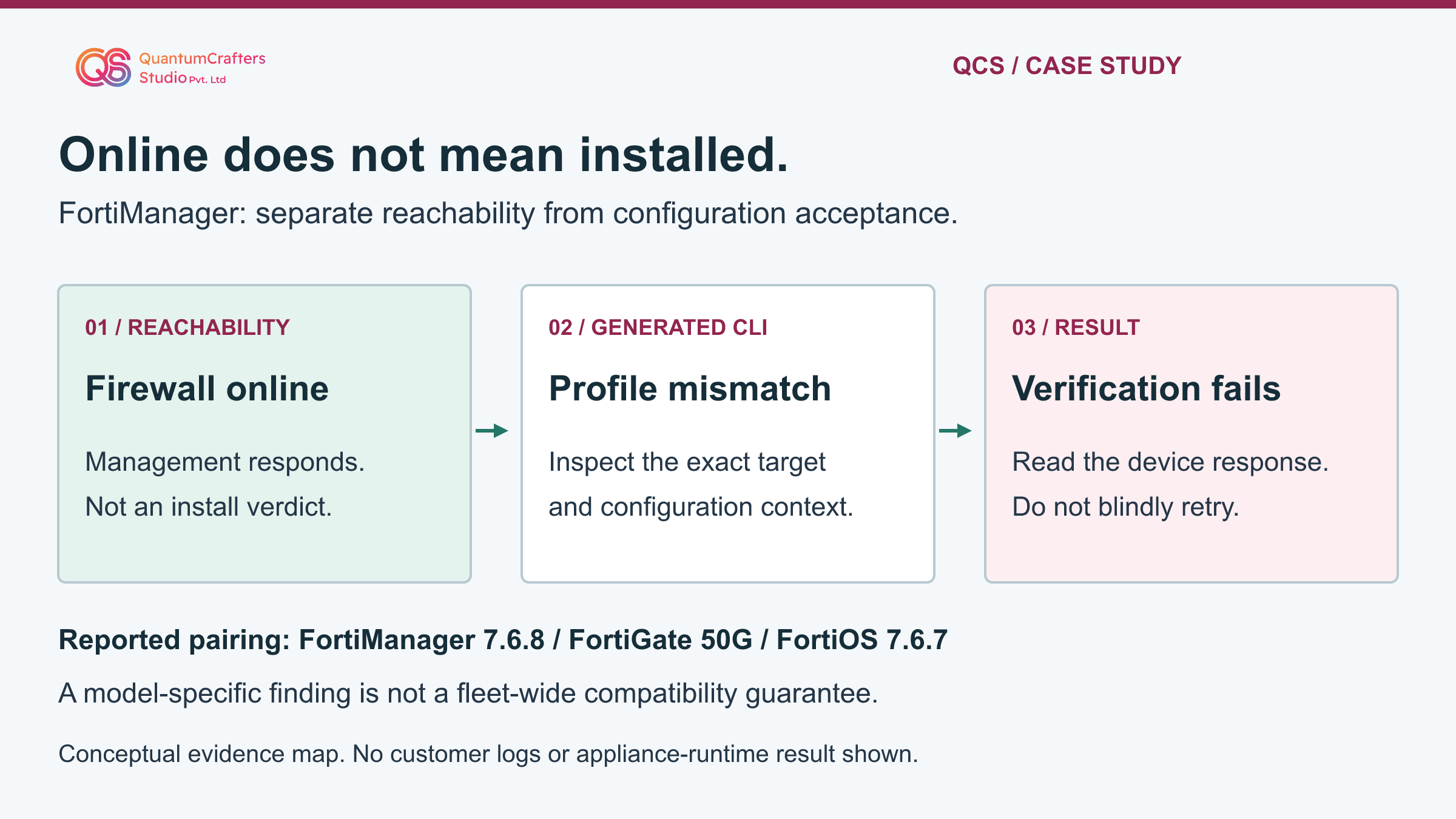
The public incident account describes policy installation failures after a FortiManager 7.6.8 upgrade, with FortiGate 50G devices running FortiOS 7.6.7. The generated SSL/SSH inspection configuration contained an attribute the affected devices rejected. The useful lesson is to correlate the full install result with per-device generated CLI and supported syntax, not to treat connectivity or a policy-only comparison as proof of success.
Any correction must preserve the intended inspection policy and be validated on the actual model/build.
Key Takeaways
- Record install and verification results separately from firewall reachability.
- Inspect per-device generated CLI as well as the policy package diff.
- Match the target model, FortiOS build, manager release and ADOM context.
- Do not trade away inspection controls to make an installation turn green.
Terms Used in This Guide
- FortiManager and FortiGate
- FortiManager centrally prepares and deploys configuration. FortiGate is the firewall that must accept and apply it. Their versions and capabilities are separate facts.
- ADOM
- An administrative domain groups managed devices and configuration in FortiManager. Record the intended ADOM and its version before inspecting or installing changes.
- Install Preview
- A view of the configuration changes FortiManager intends to send. Inspect the output for the specific target; a preview is not proof that a device has accepted the commands.
- SSL/SSH inspection profile
- A security object controlling aspects of encrypted-traffic inspection. Changes to this object can affect security behavior even if firewall policy rules do not change.
- QUIC and DoT
- QUIC is a transport protocol commonly used by HTTP/3. DoT means DNS over TLS. These labels identify different traffic handling contexts, not interchangeable security controls.
The reported problem and scope
Ravi K Sankhyan's public post describes an enterprise incident in which firewalls stayed online while centralized policy installation stopped working. It identifies FortiManager 7.6.8 and FortiGate 50G appliances on FortiOS 7.6.7. The reported status was 'install OK / verify FAIL'.
A generated 'set udp-not-quic allow' line in an SSL/SSH inspection profile was rejected with parse error -61 on an affected 50G; the account contrasts a 70G on the same FortiOS release that accepted it. This comparison is evidence from the source, not a complete model-support matrix.
The post and author clarification report a device-scoped correction, a clean subsequent preview and restored installation. They do not provide the complete customer configuration, approval record, before/after inspection policy, or long-term measurements. This article is not independently reproduced incident evidence.
No FortiManager or FortiGate runtime was operated to prepare it. The expanded checklists below are QCS's proposed investigation procedure, not a transcript of commands executed on the customer's devices. [1]
Technical mechanism: different configuration layers need different evidence
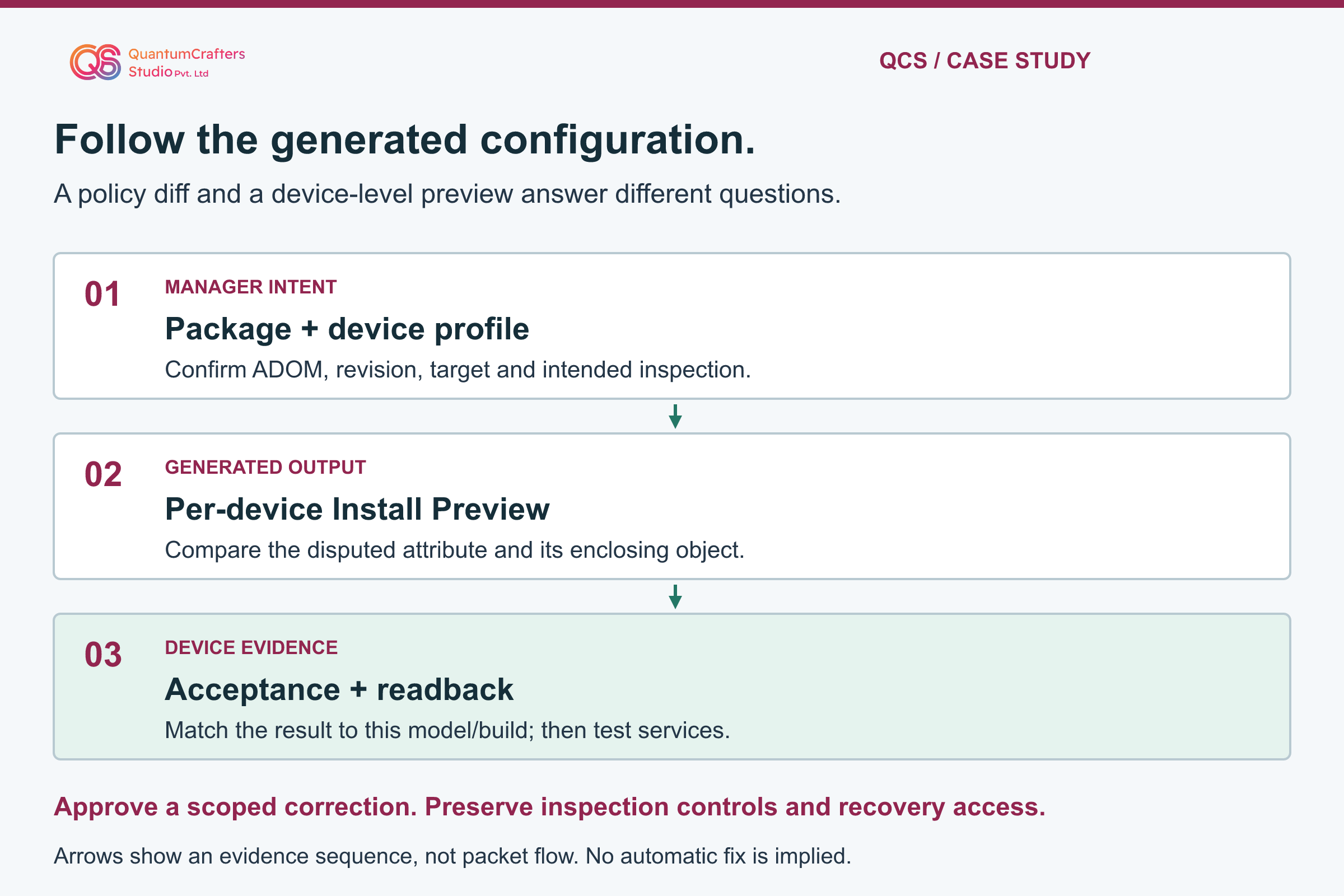
FortiManager's installation workflow can include both a policy package and device settings. Its administration guide exposes separate installation-preview and policy-difference views. In the source account, the unexpected attribute was already visible in generated output but was not flagged as unsupported before installation. Therefore a successful preview operation must not be promoted into an acceptance guarantee.
Use a simple evidence ledger. One column records intended policy and security behavior. A second records what the manager generated for one named device.
A third records the device response and the resulting configuration. A mismatch between any two columns is a reason to investigate, not to keep retrying the same batch. Attach timestamps and revision identifiers so output from an older attempt is not accidentally compared with a newer candidate.
An error code is a starting point. Preserve the enclosing object and subcommand context, not only the last error line. A rejected line inside a profile needs a different investigation from a failed transport connection. Do not assume that every preceding change was rolled back: establish the actual post-attempt state before the next installation. [3][1]
Vendor finding and limits of the documented response
Fortinet's staff article associates this FortiManager 7.6.8 behavior with issue 1352524 and affected 2 GB FortiGate models using FortiOS 7.6. It describes changing the relevant udp-not-quic fields to block, but explicitly notes that some models, including a reported 50G, may reject that setting and require support assistance.
Its expected-fix references to FortiManager 7.6.9 and 8.0.3 are a roadmap statement, not verification here that those releases are available or solve every deployment.
Treat the vendor article as a conditional lead. Read the actual target's compatibility information and current release notes before selecting an upgrade or workaround. Community replies are not a universal vendor-approved procedure. This guide intentionally provides no bulk bypass/unset script. A passing install is insufficient if the change silently removes an agreed security control. Record both the intended protection and the operational impact before approving a correction. [2][5]
Step-by-step runbook: preserve a trustworthy baseline
Step 1: Name the incident owner, change approver and affected service. Confirm authorization for the exact manager and devices. Pause your own unapproved retries while collecting evidence; this is not an instruction to disable enterprise automation indiscriminately. Record the start time and timezone of the failed attempt.
Step 2: Create an inventory row for each affected target: model, exact FortiOS build, FortiManager release, ADOM/version, package, profile and installation task. Keep serial numbers and management addresses private. Include an unaffected comparison device only if its relevant configuration and release are actually comparable.
Step 3: Preserve supported configuration backups and the corresponding manager revision. Identify a recovery connection that does not depend on the path being changed. A screenshot or show-command transcript is useful evidence but is not a substitute for a restorable backup.
Step 4: Preserve the task output before generating another candidate. Annotate the first relevant failure, its surrounding object, and the target identity. Ask whether another administrator had pending changes. An unexplained unrelated difference is a stop condition, not something to bundle into this repair. [5][3]
Inspection procedure: preview one target before considering installation
Step 5: In the correct ADOM, open the documented Install Wizard from Device Manager. Select the intended package and device settings, restrict the target list, and inspect Install Preview for that target. Export the preview to the private incident record. Review Policy Package Diff separately. Stop before Install: opening these views is an inspection task, while installation is a configuration change.
Step 6: Locate the profile named in the error and compare its generated context with the device's supported configuration. Use the target's GUI, documented CLI help and administrator-approved readback. Do not test a suspect set command on production just to discover whether it parses. If access is insufficient, request the authorized administrator's assistance instead of changing permissions.
Step 7: Document four findings: the disputed attribute, where it is generated, which targets reject it, and what the intended security behavior should be. Keep unknowns visible. A policy-only diff may be useful but does not replace the device-level investigation. If you cannot explain every proposed change in the preview, cancel and resolve the uncertainty first. [3][4]
Recommended decision: correct compatibility without weakening inspection
Choose the correction only after the evidence identifies the mismatch. Options to assess with the responsible engineer include a supported profile setting for that device, a vendor-confirmed fix release following the supported upgrade path, or a support-directed device-specific correction. None is automatically interchangeable with the others. Include security policy, client behavior, maintenance risk and recovery time in the decision.
Write the change plan as a narrow contract: one target group, one profile scope, named intended behavior, known dependencies and explicit success/failure criteria. Check whether the profile is shared by other policies or devices. Preserve the manager's authoritative configuration and the appliance state coherently; an untracked local edit can leave the next central install unsafe.
A device-settings-only installation is not a magic bypass. Fortinet documents that it reconciles the manager's device-layer configuration with the appliance. Selecting it can still send changes. Likewise, retrieving or importing a configuration should be an intentional reconciliation decision, not an automatic response that discards pending work. Escalate if ownership of the desired configuration is unclear. [4][5]
Validation: prove installation, protection and service behavior
Use a controlled representative target before a wider rollout. Regenerate the preview after the approved correction and compare it with the recorded baseline. Confirm the candidate contains only the intended edits. Record the final installation and verification results, then independently read back the relevant device state. Do not close the incident solely because the manager's progress bar completed.
Agree a small service test matrix with the owner: an allowed application must still work, an intentionally blocked test must remain blocked, and relevant encrypted-traffic inspection/logging must match the approved design. Use designated test destinations and accounts, not risky live traffic or malicious samples. Record pass, fail or not tested for each item, with observer and time.
Repeat the checks for each distinct affected model/build combination. Capture a before/after configuration comparison and investigate any unrelated drift. An unchanged test device is useful as a control but does not prove the rest of the fleet. Record residual limitations and an agreed observation window before expanding the deployment. [3][1]
Rollback, escalation and the operational lesson
Set rollback triggers before any change: loss of approved management access, unexpected configuration drift, failed security acceptance tests or business-service regression. Name the person who can authorize recovery and the device/manager baseline to use. Do not blindly restore an entire manager database or downgrade firmware during an active incident; that may affect other devices and changes. Use the supported recovery procedure for the installed versions.
If the attribute remains unsupported or the resulting protection is uncertain, hold the rollout and escalate. Send a sanitized package containing exact versions, model class, task reference, relevant preview excerpt, device error and steps already attempted. Share credentials, backups and full configurations only through the approved private support channel. Do not label the incident a vulnerability or a fleet-wide defect without evidence.
The lasting improvement is a mixed-model preflight checklist. A centralized change should have a representative target list, generated-output review, explicit security acceptance criteria and a recovery owner. QCS's troubleshooting service can help organize this evidence; this free guide does not guarantee a diagnosis from a single status message. [5][2]
Practical Checklist
Confirm authorization, affected service and incident owner.
Record exact manager, ADOM, model and FortiOS build.
Preserve task output and supported backups privately.
Confirm recovery access before any installation.
Inspect generated CLI for each representative device.
Compare policy differences and device settings separately.
Check shared profile dependencies and intended security behavior.
Approve only explained, narrowly scoped changes.
Verify installation results and actual device readback.
Test allowed and blocked behavior without disabling inspection.
Record rollback triggers, untested checks and support escalation evidence.
Questions Teams Ask
Does an online FortiGate mean the policy installation succeeded?
No. Reachability, command acceptance and post-install verification are separate checks. Preserve the complete task result and inspect the resulting device configuration. [3]
Should I apply a bypass script to every managed firewall?
No. A blanket security-profile change is not justified by one case. Confirm target support, shared dependencies and the approved inspection behavior, and use a scoped change with recovery and acceptance tests. [2]
Does this prove every device with the same FortiOS version is affected?
No. The source's comparison demonstrates why model and build matter. It is not a complete compatibility matrix or proof about untested appliances. [1]
Was the reported correction tested by this article's authors?
No. The outcome is source-reported. This article adds documentation-based explanation, original diagrams and a proposed verification procedure, not an appliance-runtime result. [1]
Sources and Further Reading
Sources and Technical Scope
This guide draws on the technical references cited above and explains their practical implications for network and security teams. Diagrams are illustrative. Check applicability against your device model, software release and environment before making changes; documentation-based guidance is not evidence of a completed appliance or laboratory test.