
Network Security Case Study
FortiClient Connected, Application Unreachable: A FortiGate ZTNA Case Study
A QCS FortiGate ZTNA case study: trace EMS trust, gateway listeners, policy and backend access with safe troubleshooting steps and clear diagrams.
Reviewed by Harvey (independent Codex review)
Direct answer
A FortiClient connection to EMS confirms a management relationship, not successful access to a protected application. In the published QCS case, the investigation narrowed the problem to the access-proxy VIP/interface configuration and its associated policy. After alignment with the intended application path, requests reached the PAM application and returned its authentication response; QCS subsequently reported working access.
For a similar incident, verify the actual request destination, listener, device trust, matching policy and backend separately before changing configuration.
Key Takeaways
- An endpoint can be managed successfully while its application connection fails at another boundary.
- Trace the actual request: destination, gateway listener, trust and policy, backend connection, then application workflow.
- The QCS case identifies the VIP/interface and policy area; it does not disclose a reusable one-command fix.
- Keep certificate, posture and least-privilege checks enabled while diagnosing the failure.
- A login page or authentication response is useful evidence, but it is not proof of successful authorized application use.
Terms Used in This Guide
- ZTNA
- Zero Trust Network Access: controlled access to a particular application using identity and policy checks, rather than treating network presence as permission.
- FortiClient and EMS
- FortiClient is endpoint software. Endpoint Management Server (EMS) manages endpoints and supplies device information and security posture context used by FortiGate.
- PAM
- Privileged Access Management: an application that controls or supports access to powerful administrative accounts. Reaching its sign-in page is not the same as receiving privileged access.
- Listener and access-proxy VIP
- A listener accepts connections at an IP address and port. An access-proxy virtual IP (VIP) identifies the FortiGate application gateway that a ZTNA client contacts.
- Backend or real server
- The internal application server selected by the gateway's service mapping. The proxy connects to it separately from the client-facing connection.
- Security posture tag
- An EMS-derived label describing a device condition. A policy can use tags as part of deciding whether the device may access an application.
- TLS, certificates and DNS
- TLS protects a connection. Certificates support identity checks. DNS translates a name into an address. A successful DNS lookup alone does not prove a secure or authorized connection.
- VDOM and policy
- A virtual domain (VDOM) is an administrative and traffic context on a FortiGate. A policy is a rule that decides how a matching request is handled within the relevant context.
The reported problem and the limits of the case
QCS described an escalation in which FortiClient was communicating with EMS, yet users could not open an internal PAM application. The investigation examined the ZTNA gateway, access-proxy VIP, listening interface and port, associated proxy policy and backend mapping. QCS reported that the VIP/interface configuration and associated policy needed to be aligned with the intended application path.
HTTPS requests then reached the application and returned its authentication response, with working access subsequently confirmed.
That is the evidence available from the public case summary. It does not identify the customer, exact FortiOS, FortiClient or EMS versions, deployment mode, interface name, policy number, addresses, error text or before-and-after configuration. We therefore do not claim a particular wrong port, certificate defect, software bug or security vulnerability caused this incident. The procedure below is a reusable investigation method, not a reconstruction of undisclosed customer settings.
The architectural references use FortiOS 7.4.7 documentation as a named baseline. This is not a recommendation to install that release or a claim that the customer used it. Before applying any step, consult documentation, supported features, compatibility information and security guidance for your actual model and versions. [1][10]
How the access path works: two different kinds of connection
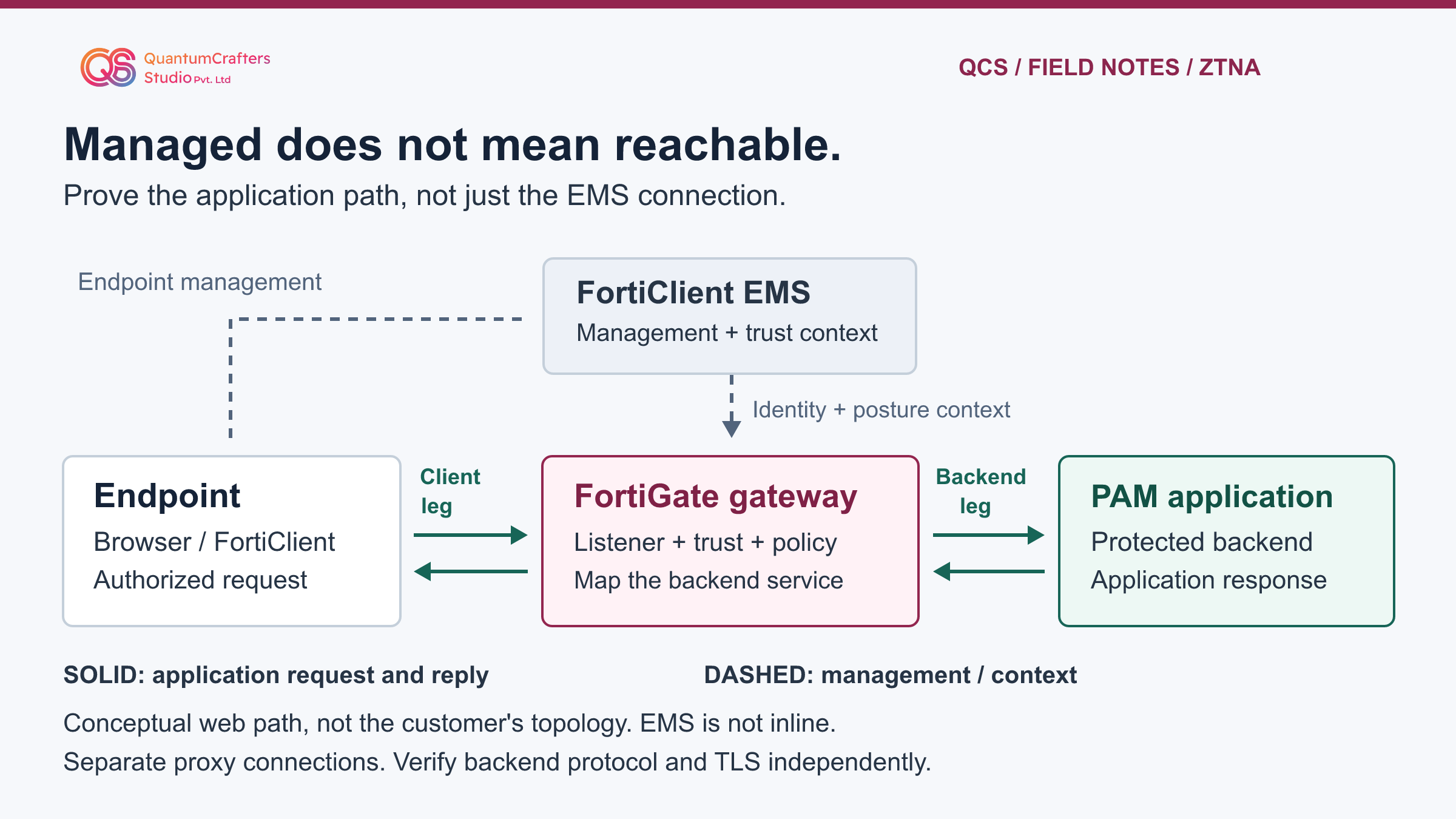
Think of endpoint management and application access as separate responsibilities. EMS manages FortiClient endpoints and shares identity and posture information used by FortiGate. Application traffic does not pass through EMS on its way to the protected server. A healthy EMS relationship is useful evidence for that management function; it does not certify the complete application path.
For the conceptual web example shown here, the endpoint connects to a FortiGate access-proxy listener. FortiGate evaluates the relevant trust and access rules and establishes a separate connection to the selected backend. Replies follow the corresponding proxy connections. Client-facing TLS does not by itself establish how the backend leg is protected; inspect the actual backend protocol and TLS configuration.
First identify the deployed access mode. With an HTTP access proxy, the browser requests the published application URL through the gateway. With TCP forwarding access proxy, FortiClient connection rules select destination traffic and direct it to the gateway over HTTPS.
Diagnose the rules for the mode actually in use. The diagram is a logical explanation, not a claim that the original customer used either specific mode. It omits intermediary networks, identity providers, HA members and application dependencies. [2][9]
Step-by-step runbook, step 1: establish a safe baseline
Work only on systems you are authorized to administer. Agree on an incident owner, an approved test user and endpoint, and a short test window. Record the intended application URL, time and time zone, endpoint identifier, expected access level, observed error and whether other users or applications are affected. Avoid putting customer names, private addresses, tokens or credentials into public support posts.
Record the FortiGate model, FortiOS build, VDOM, active HA member if applicable, and FortiClient/EMS versions. Identify the documented HTTP or TCP-forwarding mode, the named ZTNA server, its VIP and the policy objects that should match. Feature availability is model- and release-dependent; for example, the referenced 7.4.7 ZTNA page excludes FortiGate models with 2 GB RAM or less.
Do not generalize a diagram into a support statement for every appliance.
Export or record the relevant configuration through your approved backup process before changing it. Keep the backup encrypted and access-controlled, including any secrets it contains. Preserve a known management access path and a specific rollback plan. Reproduce one request before making changes, then investigate where evidence first disappears. Testing repeatedly while changing several objects destroys the comparison you need. [10][8]
Step 2: verify the destination and gateway listener
Write down what the endpoint actually requests, not just the application name in a ticket. For HTTP access proxy, compare the URL's hostname, explicit port if present and resolved address with the intended gateway. For TCP forwarding, also inspect the endpoint's matching destination and forwarding rule. A test aimed at a different address or port is a different experiment.
In the FortiGate GUI, inspect the relevant ZTNA server and access-proxy VIP. Compare the external interface, IP and port with the approved design, including any upstream address translation. Confirm that the listener does not conflict with FortiGate management access. Do not change the management service or publish a new listener as a speculative fix.
Reproduce the approved request while observing the relevant traffic and event logs. If there is no matching evidence, verify logging is enabled and you are looking at the correct device, VDOM and time range. Absence of a log entry alone does not prove that packets never arrived.
A scoped packet capture can help an experienced operator establish arrival, but use an approved filter and short duration; captures may contain sensitive data. Separate DNS errors, connection timeouts and certificate warnings instead of labelling all of them a policy failure. [3][8]
Step 3: check device trust and user authentication separately
EMS connectivity, device identity, device posture and user authentication answer different questions. Confirm that the intended endpoint is registered with the expected EMS and that FortiGate has the corresponding device record. Compare the identity and certificate information required by your version, not merely a shared public IP address. Several endpoints behind address translation can appear from the same address.
Inspect the applicable security posture tags and their freshness, then compare them with the policy's matching logic. The presence of some tag is not proof that the required combination is satisfied. Check whether the failure affects one endpoint, one user group or every request to the application; this helps choose the next investigation without assigning blame prematurely.
Treat the gateway's server certificate, the endpoint's client certificate and any configured user-authentication flow as distinct checks. Confirm the intended hostname, trust chain and validity where relevant, and correlate any authentication error with the same test attempt. Never dismiss a browser certificate warning, disable certificate validation, remove posture requirements or broaden user groups merely to get a successful screenshot.
The diagnostic observations below help collect evidence; none grants access or proves the backend works. [4][5][7]
Three observational CLI checks
These commands are documented for FortiOS 7.4.7. Use your authorized FortiGate CLI console or approved SSH session, in the correct administrative context. A CLI is a text interface: type one complete command at its prompt and inspect the result before continuing. Consult the matching reference if your version or permissions differ; stop on an unsupported-command error. These checks were not executed against the customer's system or a lab for this article.
Output can expose endpoint identifiers, addresses, posture information and policy names. Keep it in an approved private record and sanitize it before sharing. Large listings can be verbose; prefer the relevant GUI view when you do not need a full listing. These are observation commands, not access-granting configuration changes.
Inspect FortiGate-to-EMS connectivity information.
diagnose test application fcnacd 2Look for: Identify the expected EMS and its reported connection state. The FortiClient NAC daemon (fcnacd) manages this connectivity.
Does not prove: This does not establish that a specific endpoint is authorized or that PAM is reachable.
Inspect dynamic address information associated with EMS posture tags.
diagnose firewall dynamic listLook for: Compare the relevant tag and address entries with the endpoint and policy under investigation. Correlate identity separately, especially when addresses are shared or translated.
Does not prove: A listed address or tag alone is not proof that the complete policy matched the test request.
Inspect statistics associated with application-gateway rules.
diagnose wad worker policy listLook for: WAD is the FortiGate process handling proxy work. Compare relevant statistics before and after the timestamped test, alongside the request logs.
Does not prove: A counter can include unrelated traffic. It does not independently prove backend delivery or successful application login.
Step 4: prove the matching policy and server mapping
Check which policy model your deployment uses before deciding that a rule is missing. The referenced FortiOS documentation distinguishes full ZTNA policies under Proxy Policy from simple ZTNA policies under Firewall Policy. They are not interchangeable views of every deployment.
Simple policy has restrictions on destination-interface and real-server-address control, and some configurations can redirect matching to a full policy. Inspect the actual configuration and version-specific behavior rather than adding a broad allow rule.
Match the observed request to the intended incoming interface, source scope, ZTNA server, action, schedule, device posture requirements and any user or group conditions. Where supported and applicable, verify the backend destination restriction. Check rule order and any explicit denial that can match first. Use correlated logs to identify the selected rule rather than assuming the rule with the most familiar name handled the request.
Then inspect the service mapping: expected virtual host or path for HTTP access proxy, or destination and mapped port for TCP forwarding, plus the real server's address, protocol and port. Compare against the application owner's intended endpoint. In the QCS case, alignment of the VIP/interface and associated policy was the reported corrective area.
The public evidence does not establish which individual setting was changed, so there is intentionally no copy-and-paste configuration patch here. [6][3][1]
Step 5: test the backend boundary without bypassing ZTNA
An accepted gateway request still needs a working proxy-to-server connection. Ask the application owner to confirm the intended service is listening on the mapped address and port. Check the FortiGate's relevant route and source-address behavior, any intermediate controls, the backend's return path and host firewall. The server must reply to the actual source of the proxy connection; do not assume it sees the endpoint's original address.
Use the deployment's approved diagnostic method to observe the backend connection and correlate it with application logs. A ping response is not a test of the application's TCP listener, TLS negotiation or authentication flow. Likewise, a working request from an administrator's workstation does not reproduce the FortiGate proxy's path. If the backend uses HTTPS, inspect that leg's configured TLS behavior independently of the client-facing session.
Identify who generated a response. A gateway error page, an identity-provider redirect and the PAM application's own sign-in response are different evidence. Follow the authorized application's normal redirects and dependencies during validation, without exposing the backend directly to the Internet. Keep the protected route in place while testing; bypass access would test a different security design. [8][9]
Response options: choose a scoped correction
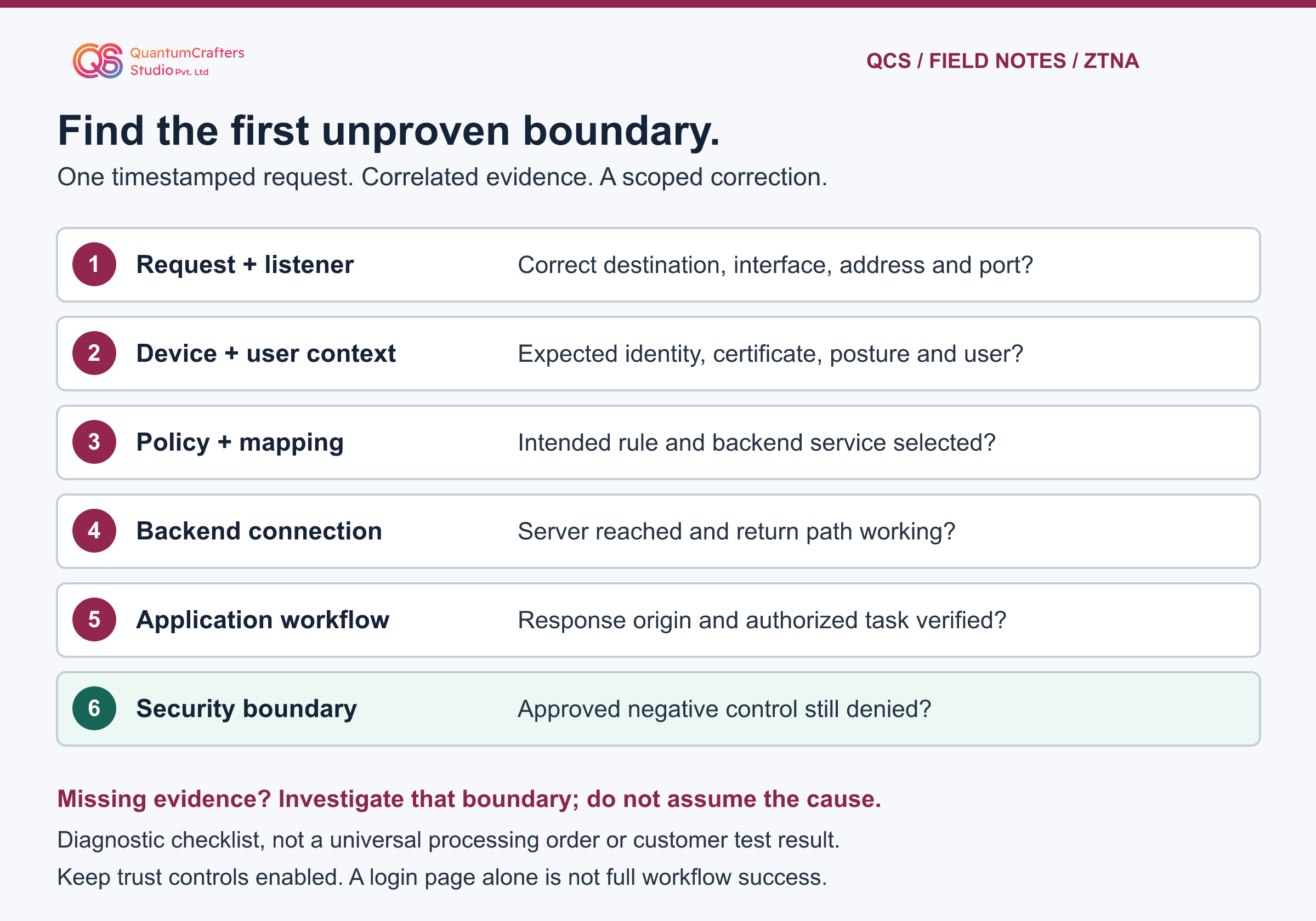
Use the earliest failed evidence boundary to select the owner and the next action. A destination mismatch belongs with naming or client-rule verification. A listener mismatch requires checking the approved gateway design.
A device-identity or posture mismatch needs endpoint and EMS evidence. A policy denial needs policy-match analysis. A backend failure needs the application and network path checked together.
These are investigation branches, not guaranteed causes inferred from a single symptom.
Before a change, document the current value, intended value, reason, expected observation and rollback action for the specific object. Check where shared objects are reused. Have the change reviewed through the organization's normal process, make the smallest justified correction and repeat the same authorized request. Do not bundle firmware upgrades, certificate replacement and policy expansion into one unexplained experiment.
For this case, the useful lesson is the method: QCS traced the application path and corrected the relevant gateway/policy alignment, instead of treating EMS status as a complete health check. Reuse that diagnostic discipline, not an imagined customer configuration. A firmware issue remains a possibility in other incidents only when version-specific evidence supports it. [1][8]
Validation: prove the application works and the boundary remains
Treat recovery as a sequence of observations. First verify that the intended gateway receives the test request and the expected policy handles it. Next verify the mapped backend and its application response.
Then have the authorized user complete the agreed non-destructive business workflow. For a PAM system, reaching a login page is not approval to retrieve credentials or launch a privileged session; only perform the specific test authorized by the application owner.
The published case reports an application authentication response followed by confirmation of working access. It does not include the detailed acceptance test. Our recommended acceptance check adds a documented authorized workflow, a controlled negative test and a review of unintended effects. Use an approved account or endpoint that should be denied, without disabling protections or deliberately infecting a device. Verify its denial and the relevant logs.
Repeat the successful request after the relevant session is renewed using the approved operational procedure, and check other applications that share changed objects. Record the time range, object names, matched policy, expected backend, response origin and user confirmation. Do not promise that one successful request proves every identity, device state, failover condition or application dependency works. [1][6]
Limits, rollback and escalation evidence
If a correction increases exposure, disrupts management or breaks another authorized application, stop and use the pre-approved rollback. Restore only the documented changes to the affected objects, then verify the original security boundary and management path. A full-device restore or restart can have a much wider impact and is not the default next step. Coordinate any shared configuration or HA work with the responsible administrator.
If evidence still does not isolate the fault, escalate with a compact, sanitized packet: model and versions, access mode, request time and destination, relevant object relationships, expected versus actual result, and correlated endpoint, FortiGate and application observations. Remove credentials, keys, cookies, tokens and unrelated customer data. Keep sensitive originals in your approved support channel, not in public comments or an unrestricted upload.
Verbose debug logging, process restarts, device-cache clearing and forced synchronization are outside this beginner runbook. They may affect operation or collect sensitive information and should be planned with qualified support for the exact version. No FortiGate, EMS, PAM system or networking lab was operated while preparing this article.
The diagrams explain documented roles; they are not captures of the customer's topology. QCS's network troubleshooting service can help an authorized team turn its own evidence into a scoped remediation plan. [7][1]
Practical Checklist
Record model, versions, VDOM, access mode and the intended application workflow.
Protect the relevant configuration baseline and confirm authorized management access.
Capture one request's URL, time zone, endpoint and exact symptom before changes.
Compare the actual destination with the expected gateway interface, address and port.
Verify endpoint identity, certificate information and required posture tags separately.
Identify the actual full or simple ZTNA policy and its matching conditions.
Compare the service mapping with the application's intended backend and port.
Correlate the gateway request, backend connection and application response.
Test an approved workflow and confirm an approved negative control remains denied.
Restore the documented baseline if the scoped change fails or increases exposure.
Questions Teams Ask
Why can FortiClient be connected to EMS but an application still fail?
The EMS relationship manages the endpoint and provides device context. The application uses a separate gateway and backend path, with listener, trust, policy and application checks. A healthy management status does not prove those checks succeeded. [2]
Was the QCS case caused by a FortiOS vulnerability?
The public case reports a configuration-alignment issue involving the access-proxy VIP/interface and associated policy. It does not identify a CVE or software defect. Do not recast it as an exploited vulnerability or infer a particular affected release. [1]
Should I look under Firewall Policy or Proxy Policy?
First identify the deployed policy mode and version. FortiOS 7.4.7 documents simple ZTNA policies in Firewall Policy and full ZTNA policies in Proxy Policy. Some configurations redirect matching to a full policy, so inspect the real object relationships rather than searching only one screen. [6]
Does an application authentication response prove the issue is fixed?
It is an important intermediate observation when confirmed to originate from the intended application. Complete the authorized workflow and test a permitted negative control before declaring recovery. A gateway-generated page or a redirect by itself is not proof of backend or user access. [1][8]
Can I paste these checks into any FortiGate?
No. Confirm your model, FortiOS version, administrative context and permissions first. The small diagnostic reference uses published FortiOS 7.4.7 syntax and is not a tested customer command transcript. Unsupported syntax is a reason to consult the matching reference, not to substitute a destructive command. [7]
Sources and Further Reading
How This Guide Was Prepared
Prepared locally from QCS's published case summary and versioned Fortinet documentation, with independent source-based AI review by Harvey in Codex. The troubleshooting sequence is original QCS guidance, not a transcript of customer commands. No paid generation API, customer-device access, appliance configuration change or networking-lab runtime was used. Customer versions, addresses, logs and the exact configuration diff were not supplied.
Technical review: Harvey (independent Codex review), Source-based AI review; not an appliance-runtime test.