
Network Troubleshooting Case Study
FortiGate Reboots Every Two Hours: An Automation Stitch Case Study
Trace recurring FortiGate reboots from update events to Automation Stitch actions. Inspect evidence, preserve FortiGuard updates and verify a safe correction.
Reviewed by Harvey, independent Codex reviewer
Direct answer
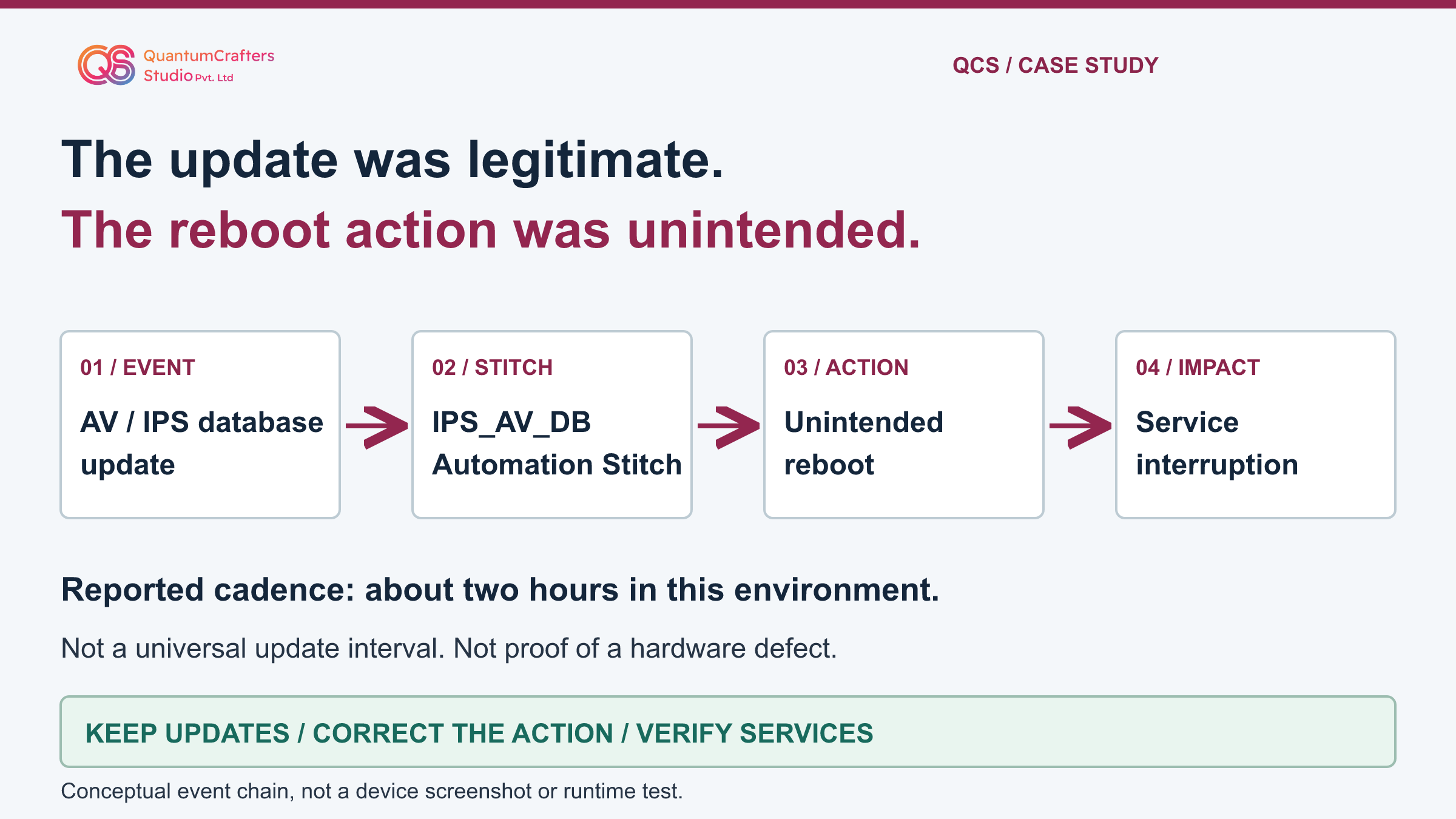
QCS's public account reports a FortiGate that restarted around every two hours because an Automation Stitch linked antivirus/IPS database updates to a reboot action. The source reports resolution after that unintended action was removed or modified. The transferable method is to correlate timestamps and configuration, correct only the confirmed disruptive automation, retain FortiGuard protection updates, and verify both continued updates and business-service recovery.
A warm reboot alone does not establish this cause.
Key Takeaways
- A regular reboot rhythm is an investigation lead, not a root-cause finding.
- Correlate reboot reason, process evidence, system events and actual action configuration.
- Retain security updates; changing their frequency is not the correction for an unintended reboot action.
- Check shared actions, device targets and recovery access before modifying automation.
Terms Used in This Guide
- Signature database
- A collection of detection information used by antivirus (AV) or intrusion prevention (IPS). Updating it is distinct from replacing the FortiOS firmware that runs the firewall.
- Trigger, action and stitch
- A trigger is a condition or event. An action is a configured response. An Automation Stitch connects a trigger to one or more actions, with settings that determine scope and execution.
- autod
- The FortiOS background process associated with Automation Stitches. Its name in logs is a clue to correlate with automation configuration, not a diagnosis by itself.
- Warm reboot
- A software-initiated restart classification. It does not identify the specific administrator, automation, upgrade or other reason without additional evidence.
- HA and Security Fabric
- High availability (HA) coordinates firewall members for resilience. Security Fabric connects supported devices for coordinated operation. Record the actual target and management context before changing automation.
- HQIP
- Hardware Quick Inspection Package is Fortinet's hardware diagnostic tooling. Passing tests does not exclude every hardware fault, configuration error or software bug.
The reported problem and the evidence boundary
QCS's public account describes a firewall that became unresponsive, restarted and returned to service around every two hours. Hardware checks passed. Investigators then connected warm-reboot information, interface-down records involving autod, and system events naming an Automation Stitch called IPS_AV_DB. The account says this stitch invoked a reboot after antivirus and IPS database updates. Removing or modifying the unintended action reportedly resolved the recurrence.
Fortinet publishes a closely matching troubleshooting case and documents this failure pattern. That vendor article is an explicit technical reference here, not a customer log captured by QCS. This expanded guide contains original operational checklists and teaching diagrams; it does not establish that the two public accounts represent separate incidents.
The public QCS post does not supply the customer's model, FortiOS build, complete configuration, HA layout, raw logs or observation duration. Do not infer any of those details from the illustration. The resolution is source-reported, not independently reproduced. The commands and correction workflow below were not executed on a FortiGate during preparation. [1][2]
How the mechanism works: an event is not the same as its response
A signature database contains detection information used by antivirus and intrusion prevention. A firmware image is the operating software of the firewall. These are different update processes. This case concerns a configured response to a signature-update event, not proof that updating signatures inherently requires a firewall restart.
An Automation Stitch is a rule connecting a trigger, meaning a condition or event, to an action, meaning the response to perform. Think of it as an if/then checklist; that is a memory aid, not a literal description of internal process scheduling. The useful question is not only 'What happened before the reboot?' but 'Which enabled rule was allowed to act on that event?'
Inspect both native system actions and CLI-script actions. Fortinet documents a system-action type capable of rebooting without an interactive confirmation prompt. Therefore an operator should not assume a command-confirmation dialog will protect the device.
A script may also invoke a disruptive command. Read the whole action and its permissions; do not execute it to see what it does. IPS_AV_DB is the reported object's name, not a mandatory default name on other firewalls. [5][6]
Why warm reboot and passed hardware tests are only clues
A warm reboot describes a software-initiated restart. Administrative operations, upgrades and other changes can produce that classification. It does not, on its own, prove automation or eliminate firmware defects. Likewise, interface-down messages during a restart do not by themselves prove faulty interfaces. Preserve the surrounding sequence instead of interpreting one line in isolation.
HQIP is Fortinet's hardware diagnostic tooling. A pass does not detect every hardware malfunction, configuration error or operating-system bug. Some diagnostic procedures are disruptive and require maintenance planning. This guide does not ask beginners to run HQIP, reset a device or reinstall firmware in production. Retain an existing authorized test report if one is available, and follow the appropriate support process for additional hardware testing.
Prepare a timeline with the event timestamp, timezone, device/member identity, evidence source and what the observation actually establishes. Align these clocks before comparing events from separate systems. A useful working hypothesis becomes stronger when an enabled configuration explains a repeated event sequence; an absent log is not proof that an action never ran. Log retention, collection gaps and an incomplete view of a cluster can all leave uncertainty. [3][4]
Step-by-step runbook: establish the baseline before any change
Step 1: Confirm the incident owner, authorization, exact model/build and the business services affected. Record whether the device is standalone, a member of an HA cluster, or managed in a Security Fabric. Do not change global or device context by guessing. Arrange the responsible administrator if your current access cannot see the relevant settings.
Step 2: Secure a supported configuration backup and a tested recovery path that will survive a management interruption. A show-command transcript is an inspection record, not automatically a restorable backup. Save the suspect stitch, trigger and action settings, their references, and the currently approved update settings in the private change record. Do not upload full configurations or logs to public tools.
Step 3: In the correct FortiGate console, gather the observational outputs below. In the GUI, inspect the System Events around the interruption and the installed release's Security Fabric > Automation view. Read the named stitch, its trigger, linked actions and target devices. If the UI labels differ, consult that build's administration guide rather than editing a similarly named object.
Step 4: Write down the sequence you can actually substantiate: update event, matching stitch execution, action target and reboot. Separate configuration showing capability from logs showing execution. If the chain is missing or contradictory, keep investigating other reboot causes; do not force this case onto a different incident. [7][8][3]
Technical evidence: observational commands and their limits
A console is the command window for the device. Open the authorized FortiGate CLI console or approved terminal session, confirm the device name and required administrative context, and type one command at a time. The cards below inspect existing status or configuration; they do not enable continuous debug or run an Automation Stitch. Never type them into a Windows command prompt expecting it to configure the firewall.
Inspect the default-inclusive update schedule where supported. Standard show output normally omits default values, so an absent line does not necessarily mean a feature is disabled. Record the version/build and check command help for that exact release. A permission error or unavailable command is a reason to stop that check and consult the administrator, not to grant yourself broader rights.
The important safety boundary is execution: do not click Test Automation Stitch or run a diagnose automation test command while a disruptive action remains attached. Reading a rule and testing it are different operations. Do not clear logs, reboot for convenience, or paste a downloaded diagnostic script into production. Keep sensitive serial numbers, addresses, administrator names, scripts and tokens out of screenshots that will be shared publicly. [10][8]
Read first: seven bounded inspection commands
For every card, open the authorized FortiGate CLI console or approved terminal session before typing. Confirm the device and required administrative context with its owner; these are not PC-shell commands. Use documentation for the installed build. Read-only here means no intentional configuration change, not zero processing cost.
Outputs can contain serial numbers, addresses, names and sensitive script content. Keep the original evidence private and share only reviewed, redacted excerpts. These commands do not enable continuous debugging. Do not clear logs or run an automation test as part of inspection.
FortiGate: record identity, build and restart classification
get system statusLook for: Record the version/build and available last-reboot information with the observation time. Remove private identifiers from shared copies.
Does not prove: A warm reboot does not identify the particular action or rule. This status snapshot is not a complete incident timeline or hardware health certificate.
Finish: This is a finite status display. Finish at the prompt; do not issue a restart to create a new sample. Retain the original observation privately.
Vendor reference for this observationFortiGate: read existing crash-history evidence
diagnose debug crashlog readLook for: Compare the incident timestamps and process names, including autod when present, with the System Events and actual stitch configuration.
Does not prove: Process or interface-down entries do not alone prove causation. Missing entries may reflect retention or an incomplete record, not a clean bill of health.
Finish: Read the finite saved history and stop when the prompt returns. Do not clear the crashlog, enable debug, or treat the command name as permission to run tests.
Vendor reference for this observationFortiGate: inspect stitch references and targets
show system automation-stitchLook for: Identify the relevant stitch, referenced trigger, action entries and destinations. Confirm omitted defaults through build-specific help and the authorized administrator.
Does not prove: Configuration establishes a possible execution path, not proof that it ran. Do not equate an absent non-default line with a disabled setting.
Finish: This command only displays configuration. Finish at the prompt without entering config mode or clicking Test in the automation interface.
Vendor reference for this observationFortiGate: inspect the referenced trigger
show system automation-triggerLook for: Find the trigger referenced by the suspect stitch and compare its condition with the actual incident event. Check the installed build's supported event types.
Does not prove: A similar trigger name is not an exact match. A configured update-related trigger does not prove every update check causes an execution.
Finish: Read and record only the relevant sanitized excerpt. Do not change the trigger or simulate an event merely to make the timeline fit.
Vendor reference for this observationFortiGate: inspect action type and script content
show system automation-actionLook for: Read the exact referenced action. Inspect native system actions and CLI scripts, plus privilege and destination dependencies where applicable.
Does not prove: Reading an action is not executing it, and the action name alone does not describe its behavior. Shared definitions may affect multiple stitches.
Finish: Finish the display and protect any sensitive script output. Do not copy the script into the console or invoke Test to verify a reboot action.
Vendor reference for this observationFortiGate: inspect default-inclusive update scheduling
show full-configuration system autoupdate scheduleLook for: Record enabled state, frequency and time settings. Interpret them using the installed build, timezone and observed update history.
Does not prove: Schedule configuration is not proof of a successful update or an exact reboot interval. Existing settings may differ from a release's defaults.
Finish: Read the display without entering the configuration block. Do not disable updates or reduce their frequency to hide the unintended action.
Vendor reference for this observationFortiGate: distinguish update attempts from installations
diagnose autoupdate versionsLook for: Record relevant database versions, last installed update, last attempt and result. Compare these times with the automation and reboot records.
Does not prove: An attempt is not a successful installation. No Updates can mean nothing new was available; this output alone does not establish business-service health.
Finish: Finish at the prompt and retain a redacted record. Do not force an update or run an automation action just to obtain a desired result.
Vendor reference for this observation
Recommended correction: preserve updates and scope the change
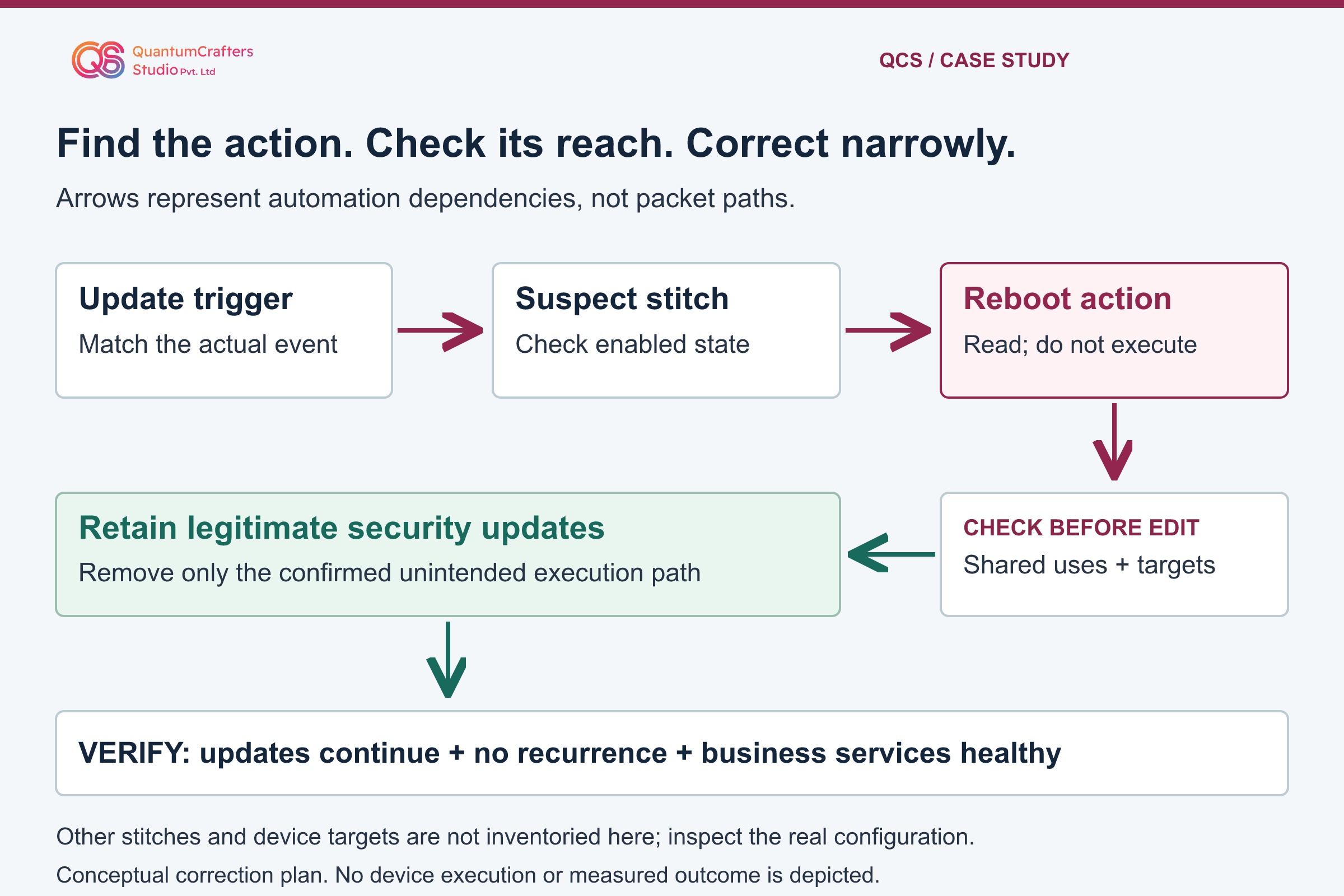
After the evidence identifies an unintended reboot path, obtain approval for the smallest effective correction. Inspect every stitch that references the same action and every configured destination before deciding whether to unlink, modify or retire an action. A shared action definition can serve more than one workflow; changing it globally may disrupt unrelated controls.
Record which target and reference you intend to change and compare that with the baseline before saving.
A temporary disable of the specific suspect stitch may be a containment option only after its other actions and operational consequences are assessed and the incident owner approves. It is not a recommendation to disable all automation. Do not turn off FortiGuard antivirus/IPS updates or weaken inspection to prevent recurrence. Reducing update frequency merely postpones the same incorrectly attached response.
The case does not provide enough configuration to justify a universal delete or set command. Apply the approved edit through the installed release's documented workflow, then read back the settings. If a useful notification is retained or substituted, verify its destination and data exposure separately; do not send configuration files to an unapproved mailbox or webhook. Changing a rule should improve safety without creating a new disclosure path. [7][6][5]
Validation: prove that updates continue and services remain healthy
Agree an observation window with the service owner based on the device's actual update configuration and recent incident history. Two hours is the cadence in the public account, not a universal FortiOS default. Fortinet documents a change from automatic to daily defaults starting with FortiOS 7.4.10 and 7.6.5. An existing installation's settings and logs, rather than that release-note default alone, determine its behavior.
Observe a legitimate update check and, when new definitions are available, a successful installation. Record the attempt time, result and database versions. 'No Updates' is different from a failed check, and an attempt is different from a newly installed database.
Do not force a risky update or fabricate an update event merely to close the incident. If the relevant trigger has not naturally occurred, label that part of validation pending.
Correlate the later events with uptime and the absence of the unintended reboot action, then repeat the original business-service checks. Test approved browsing or application access, relevant VPN service and monitoring; inspect HA member health if applicable. One responsive management page is not a complete service check.
Record pass, fail or not tested with times and observers. The reported resolution remains a source claim; these steps are a proposed validation plan, not measurements performed for this article. [9][1]
Rollback, escalation and the operational takeaway
Define rollback before editing: name the owner, recovery access, saved baseline and failure condition. Do not blindly restore an entire backup or re-enable a known disruptive reboot action. If the correction harms another required workflow, the incident owner must choose a narrowly scoped recovery that preserves service while keeping the demonstrated hazard contained. Document the remaining risk rather than treating the old configuration as automatically safe.
If interruptions continue after the suspected action is removed from the relevant execution path, reopen the diagnosis. Preserve new reboot reasons and timestamps. Power-related evidence, kernel failures, resource pressure, firmware changes or a different automated operation require their own investigation. Escalate with a sanitized timeline, exact build, configuration excerpts and the tests actually performed. Do not assert a vulnerability or hardware defect without supporting evidence.
The durable improvement is an automation register: an owner, purpose, trigger, action, targets, privileges, review date and validation method for each consequential rule. Review reboot, shutdown and configuration-changing actions before enabling them. For assistance, bring a sanitized evidence set to QCS network troubleshooting support.
No paid service is required to read this guide or use the browser-local Config Lens tool, and this article does not claim a guaranteed diagnosis from a single log line. [3][6]
Practical Checklist
Confirm authorization, build, member and administrative context.
Preserve a supported backup and test independent recovery access.
Record the actual update schedule and recent service interruptions.
Align timestamps, timezones and evidence sources.
Read the reboot reason without treating it as the cause.
Correlate automation events with trigger, action and target configuration.
Inspect shared action references before changing any definition.
Do not test a stitch that still contains a disruptive action.
Approve and read back a narrowly scoped correction while retaining updates.
Observe update results and business-service health over an agreed window.
Record untested checks and a safe recovery plan rather than claiming certainty.
Questions Teams Ask
Does a warm reboot prove an Automation Stitch caused it?
No. It is a classification, not an attribution. Correlate system events, process evidence and the enabled action configuration before selecting a cause. [3]
Should I disable FortiGuard updates to stop the restart?
No. Preserve legitimate protection updates and correct the confirmed unintended action. The update event and the configured reboot response are separate parts of the workflow. [5]
Do all FortiGate devices update every two hours?
No. That interval belongs to the reported case. Inspect actual settings and logs; Fortinet documents daily defaults starting with 7.4.10 and 7.6.5, but defaults alone do not establish an existing device's behavior. [9]
Can I safely click Test to confirm this hypothesis?
Not while the stitch contains a reboot or other disruptive action. Testing executes automation. Read and correlate first; any controlled execution requires an approved isolated or maintenance test plan. [10]
Was the resolution independently reproduced?
No. The public source reports resolution after the action was removed or modified. This guide provides documentation-based analysis and a verification procedure, not a device-runtime result. [1]
Sources and Further Reading
How This Guide Was Prepared
Prepared locally from the public QCS account and primary Fortinet documentation. Harvey independently reviewed the exact article, seven diagnostic commands and diagrams on 30 October 2026. Diagrams are conceptual, not customer logs or appliance screenshots. No paid generation API or device-runtime test was used.
Technical review: Harvey, independent Codex reviewer, Documentation-based technical, source and visual review.